Guide
How to Geotag Photos for Google Business Profile
Why location data on business photos matters for local SEO, how to find your exact coordinates, and how to geotag photos before uploading them.
Local businesses live and die by whether Google trusts that they're real, physical, and where they say they are. Photo location data is a small, easy-to-get piece of that trust, and most business owners never add it.
Why geotagged photos matter for local SEO
Google Business Profile and Google Image Search both look at EXIF GPS data as one signal for verifying that a photo was taken at a real, specific location. For a local business, that plays into confirming the storefront photo actually matches the listed address, which supports trust in local search results. EXIF alone isn't a ranking factor on the open web, but it does help establish that your images are what they claim to be.

Is it actually required?
No. Google Business Profile accepts photos with or without GPS data, and plenty of listings rank well without ever thinking about it. Geotagging is a small addition on top of the fundamentals, good lighting, a clear subject, and an accurate representation of the business, not a replacement for them.
Geotagging isn't a hard requirement for Google Business Profile. It's a supporting signal that helps confirm a photo was taken at your real address, on top of photo quality basics that matter more.
Step by step: find your business's exact coordinates
- 1Open Google Maps and search your business name or address.
- 2Right-click (or long-press on mobile) directly on your storefront's location on the map.
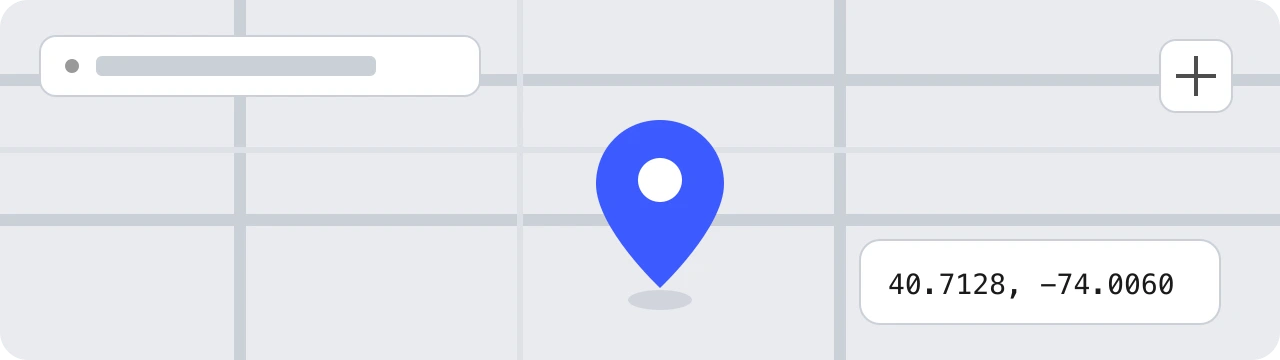
- 3The latitude and longitude appear at the top of the menu that pops up. Tap them to copy.
Step by step: geotag photos before uploading
- 1Open GeoTag Photos Online.
- 2Drop in the storefront or product photo.
- 3Paste the coordinates you copied from Google Maps into the latitude and longitude fields, or click the same spot on the embedded map.
- 4Add your business name in the Copyright field if you want it attributed, then press Tag All.
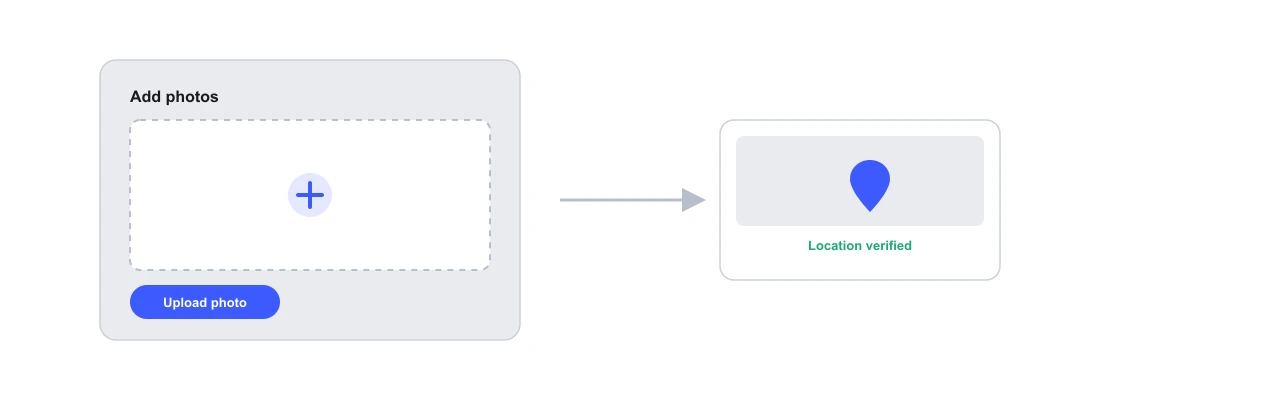
- 5Download the tagged JPEG and upload that file to your Business Profile.
Exact address versus city-center coordinates
A common mistake is grabbing coordinates for the general city or neighborhood instead of the storefront itself. A location a few blocks off is easy for anyone to spot as inaccurate, and it undermines the point of adding GPS data at all. Zoom in on the map until the pin sits directly on the building. For the general steps behind this, see how to add location to photos.
Common mistakes local businesses make
| Mistake | Result |
|---|---|
| Using city-center coordinates | Location looks generic and doesn't match the actual storefront. |
| Uploading uncompressed, huge files | Slower load times on the listing; compress before uploading. |
| Skipping a description or alt text | Missed opportunity, since some platforms surface EXIF description as accessible text. |
| Geotagging stock or stolen photos | GPS data on a photo that wasn't actually taken at the business misrepresents the listing. |
Frequently asked questions
Does Google Business Profile require geotagged photos?
No, it's not a stated requirement. Google accepts photos without GPS data. What accurate geotags do is give Google an extra signal that a photo genuinely was taken at your listed address, which can support trust and local visibility.
What coordinates should I use for a business photo?
The exact latitude and longitude of your storefront or office, not the center of your city or neighborhood. You can get this from Google Maps by right-clicking your exact location and copying the coordinates shown.
Can I geotag photos that are already uploaded to my profile?
No. You'd need to geotag the file itself before uploading, then remove the old photo and upload the newly tagged version, since Google Business Profile doesn't offer a way to edit metadata on photos already on the listing.
Will geotagging low-quality photos still help my listing?
Geotagging adds location trust, but it doesn't fix poor lighting or a blurry shot. Google's own guidance for Business Profile photos still prioritizes clear, well-lit, accurate images. Location data is a supporting signal, not a substitute for photo quality.
Wrapping up
Geotagging business photos is a five-minute task that adds a real trust signal to your Google Business Profile. Get the exact coordinates from Google Maps, write them into the photo before uploading, and keep the fundamentals of good photography in place alongside it.
Try it yourself on GeoTag Photos Online, free and no signup.
Geotag a business photo