Guide
How to Take a Geotagged Photo on iPhone
Where the Location Services setting lives, how to check if a photo already has GPS, what strips it, and how to fix a photo that's missing location.

iPhones are capable of writing GPS coordinates into every photo you take, automatically, but only under the right settings. Here's where that setting lives, how to confirm it's working, and what to do about a photo that slipped through without location data.
Does iPhone geotag photos automatically?
Yes, as long as Location Services is turned on for the Camera app. When it is, every new photo gets GPS latitude and longitude written into its EXIF data the instant it's taken. When it's off, for that app or system-wide, photos come out with no location at all.
Turning on Location Services for the Camera
- 1Open the Settings app.
- 2Tap Privacy & Security, then Location Services.
- 3Make sure Location Services is toggled on at the top.
- 4Scroll down to Camera and tap into it.
- 5Choose While Using the App. "Never" means new photos won't carry GPS.
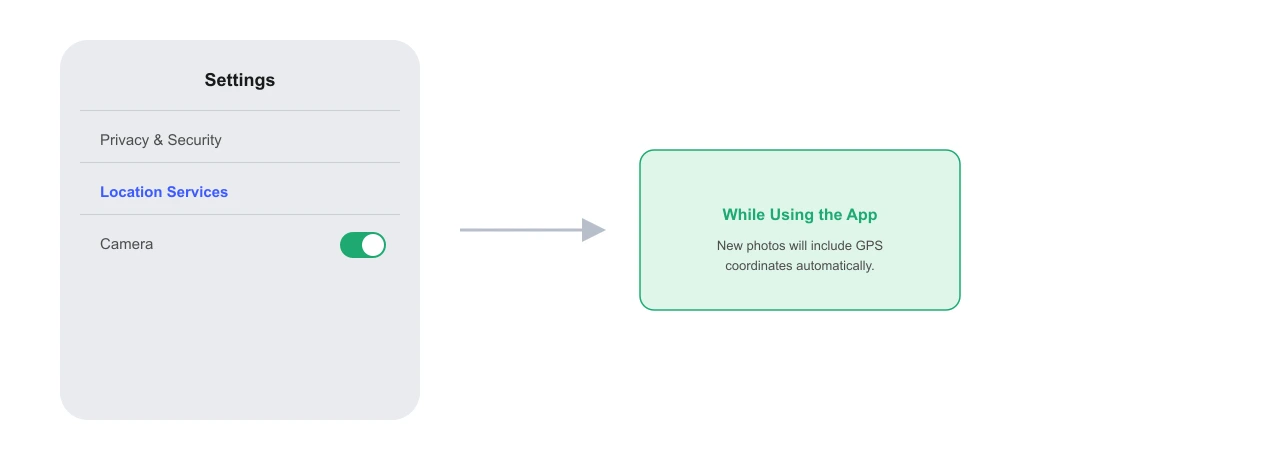
iPhone writes GPS into every photo automatically, but only when Location Services is on for the Camera app specifically, under Settings, Privacy & Security, Location Services, Camera, set to "While Using the App".
How to check if a photo already has GPS data
Open any photo in the Photos app and swipe up. If the photo has location data, a small map preview with a pin shows up near the bottom, above the camera details. No map section means no GPS was recorded for that photo. For other platforms, see how to find GPS coordinates from a photo.

What strips GPS data from an iPhone photo
| Sharing method | Keeps GPS data? | Notes |
|---|---|---|
| AirDrop | Yes | Sends the original file with EXIF intact. |
| Messages (as-is) | Sometimes | Depends on compression settings; heavily compressed sends often drop it. |
| No | Strips EXIF, including GPS, before sending. | |
| Screenshot of a photo | No | A screenshot is a brand new image with no camera metadata at all. |
| Social media upload | No | Most platforms remove EXIF location on upload, for user privacy. |

Fixing a photo that's missing GPS
iOS has no built-in tool for adding location to a photo after the fact. The fix is a browser tool, right inside Safari:
- 1Open geotagphotosonline.io in Safari.
- 2Drop in the photo missing location data.
- 3Search the address or tap the map where it was taken.
- 4Press Tag All, then download the geotagged copy.
Privacy note: when to leave location off
Automatic geotagging isn't always what you want. Photos you plan to post publicly, especially of your home or workplace, reveal your exact address to anyone who checks the metadata. Turning off Location Services for the Camera before taking those specific photos, or removing the GPS data before sharing, avoids that.
Frequently asked questions
Why don't my iPhone photos have location data?
Almost always because Location Services is turned off for the Camera app, either system-wide or per-app. Check Settings, Privacy & Security, Location Services, Camera, and make sure it's set to "While Using the App".
Does AirDrop remove GPS data from a photo?
AirDrop itself keeps the original file and its EXIF intact. It's messaging apps like WhatsApp, Messages (when sent as a compressed image), and social platforms that strip metadata, including GPS, when you share through them.
How do I see if a specific photo has GPS on iPhone?
Open the photo in the Photos app, swipe up on the image, and look for a map preview near the bottom. If a small map with a pin appears, the photo has location data. If there's no map section, it doesn't.
Can I geotag an iPhone photo without another app?
iOS itself has no built-in editor for adding GPS after the fact. Safari can still do it though: open a browser tool like GeoTag Photos Online, drop the photo in, and it works the same as on desktop.
Wrapping up
Getting iPhone photos to geotag automatically is a one-time settings change. For anything that missed it, a browser tool in Safari closes the gap in under a minute.
Try it yourself on GeoTag Photos Online, free and no signup.
Fix a photo missing GPS